First Method:
Step 1:
Select the Asset Dashboard found in the navigation bar beneath the ACTIVITY section.

Step 2:
Select all assets, alternatively go to https://app.assetpool.co/assets.

You will be taken to the following screen listing all the assets.
At the top right-hand corner of the screen you will see an
Export
button.

Step 3:
Click on the
Export
button.

Step 4:
To export an Excel Workbook, select Excel Workbook(XLSX).

The Asset Excel Workbook will be downloaded onto your device.

The Asset Excel Workbook:
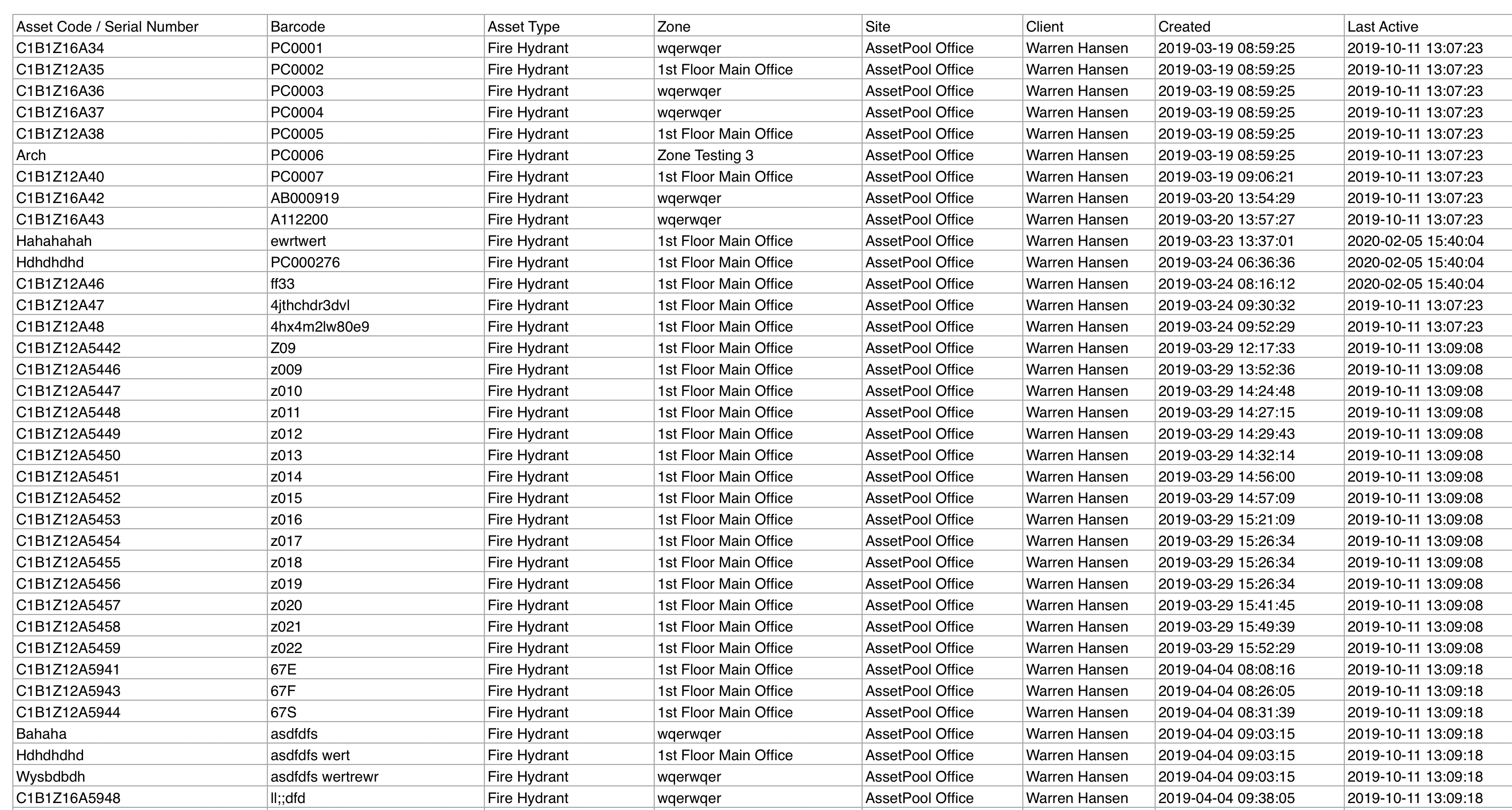
To export a Comma-Seperated Value file, select Comma-Seperated Value(CSV).

The Asset Comma-Seperated Value file will be downloaded onto your device.

The Asset Comma-Seperated Value file:

You will have now successfully exported your assets to either an Excel Workbook or a Comma-Seperated Value file!
Second Method:
Step 1:
Select the Asset Types navigation bar item found in the navigation bar within the ADMINISTRATION section.
Select the Asset Type applicable.

Step 2:
You will be taken to the following screen.
At the top right-hand corner of the screen, you will see a menu, select the Assets tab.

Step 3:
You will be taken to the following screen listing all the assets within the Asset Type you selected.
Beneath the menu, there is an
Export
button.

Step 4:
Click on the
Export
button.

Step 5:
To export an Excel Workbook, select Excel Workbook(XLSX).
The Asset Excel Workbook will be downloaded onto your device.

To export a Comma-Seperated Value file, select Comma-Seperated Value(CSV).
The Asset Comma-Seperated Value file will be downloaded onto your device.

You will have now, once again, successfully exported your assets to either an Excel Workbook or a Comma-Seperated Value file!